
Align Views On Sheets
Sheets
Autodesk® Revit® add-in for precise viewport positioning across sheets and models, ensuring consistent drawing placement across all disciplines.
Overview
- Align Views on Sheets enables precise viewport positioning across sheets in multi-model Revit projects. This ensures that the same drawing lands at exactly the same position on every sheet - across all models and disciplines. Imagine sector 1 drawings placed at precisely the same location on architectural, structural, mechanical, plumbing, and electrical sheets simultaneously.
- The tool first scans the model for Scope Boxes and detects how many View Markers are present within each one. Click Find Views to locate all viewports on sheets whose views have a Scope Box assigned that contains a View Marker.
- For each viewport, the tool reads the Layout X Offset SP and Layout Y Offset SP parameters from the corresponding View Marker to determine its target position on the sheet. The View Marker is matched by its Mark parameter (Scope Box name), or falls back to the View Marker positioned furthest to the top-left within the Scope Box.
- For best results, linked models should be unloaded before running the alignment. The built-in link manager remembers which links were loaded or unloaded so you can restore them with a single click after alignment.
Features
Scan model for Scope Boxes and detect View Markers within each
Find all viewports on sheets with a Scope Box and View Marker assigned
Match viewports to View Markers by Scope Box name or top-left fallback
Align all detected viewports simultaneously across all sheets
Built-in link manager to unload and restore linked models
Known Limitations
- Requires View Marker family loaded in the model with Layout X Offset SP and Layout Y Offset SP parameters
- Scope Box must be assigned to the view for the viewport to be detected
- Unloading linked models before alignment is recommended for best results
Screenshots
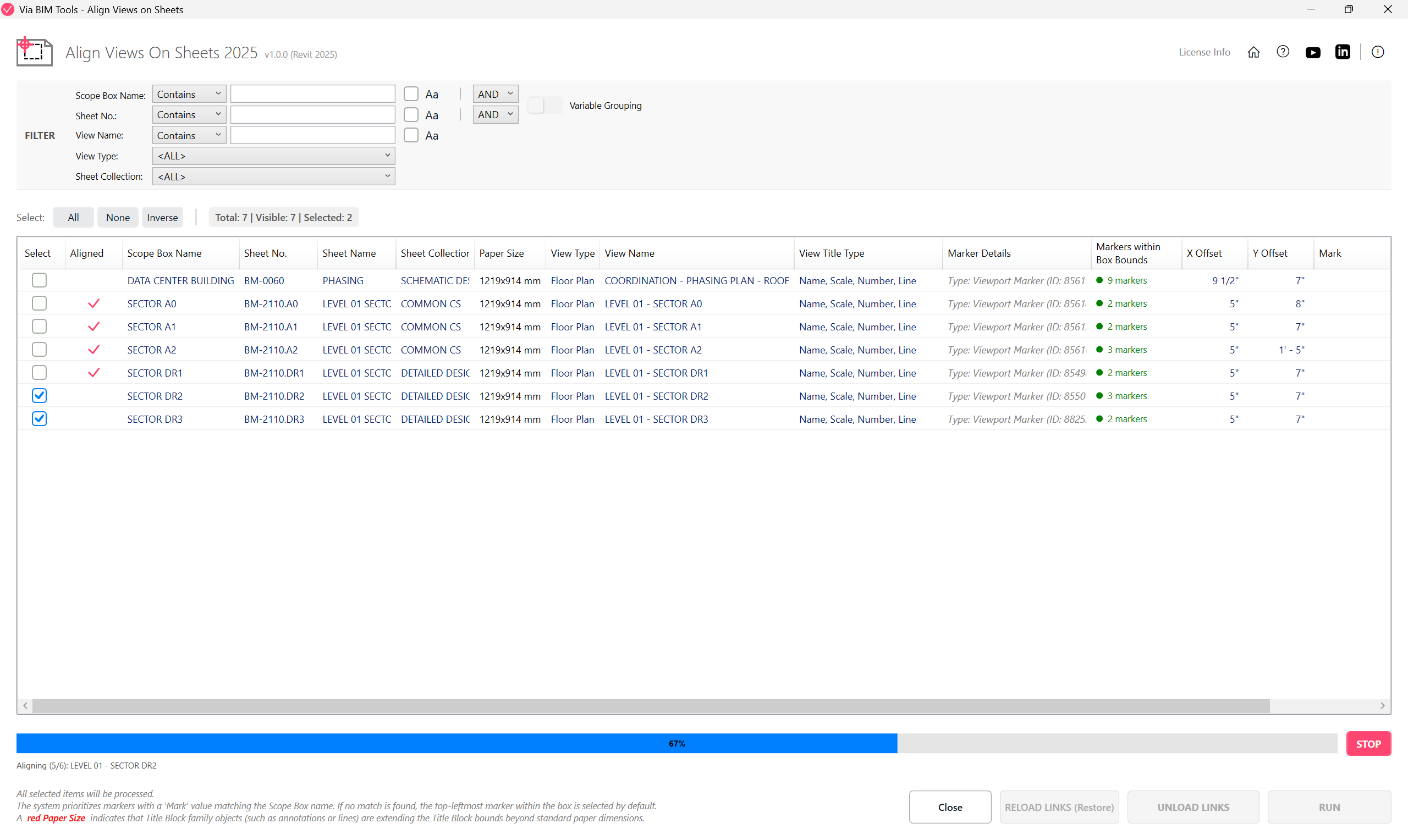
Detected viewports aligned to View Marker positions across all sheets
Part of
Via BIM Tools Bundle17 tools
Version1.0.0
Revit2024, 2025, 2026, 2027
PlatformWindows
Also in the bundle
Scope Box ManagerCopy Scope Boxes From LinkReassign Scope Boxes To ViewsCreate Dependent ViewsPlace Views On SheetsBatch Rename ViewsBatch Rename SheetsCopy View Markers From Link
Align Views On Sheets
Links SelectorPlan Region SnooperMEP Level MapperManage Revit UnitsLayers ManagerRoom 3D TagsRoom 3D VolumesRoom Space Cleanup